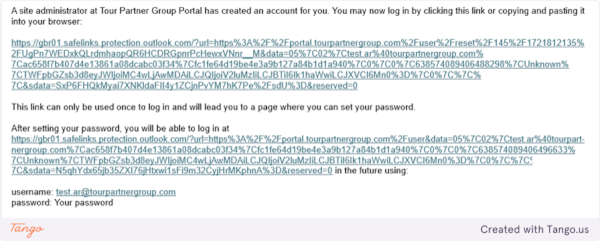
- Before logging in for the first time, you should receive the following email:
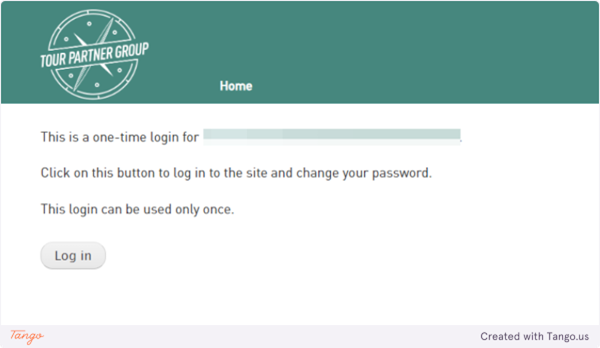
- Upon clicking on the link provided, you will be taken to the following screen. Click on Log in.
- You will then be prompted to set a password:
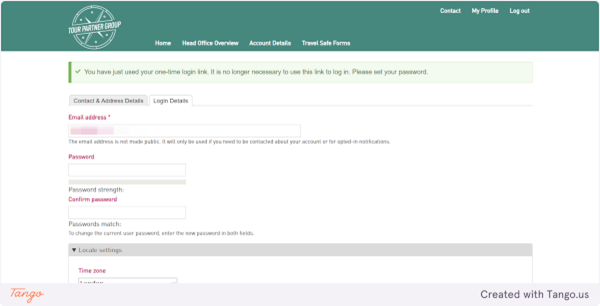
- Once done, press the ‘Save’ button to confirm this.
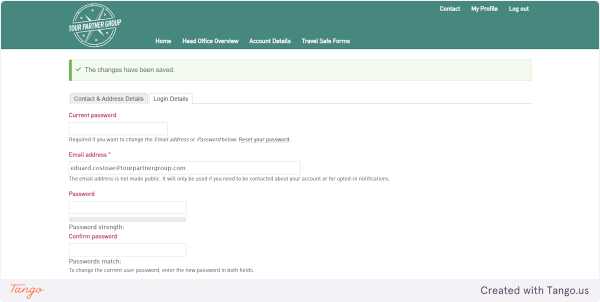
- As a mention, every time you need to log into the Supplier Portal, you will be prompted with this page:
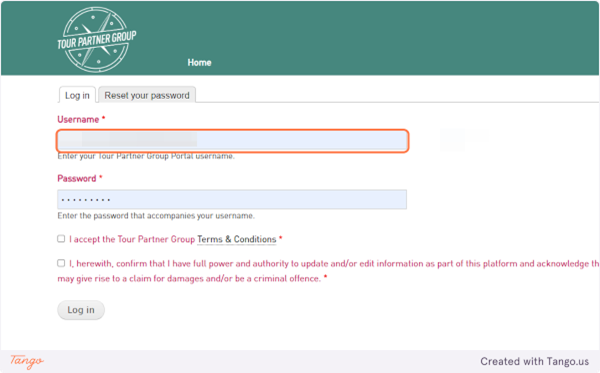
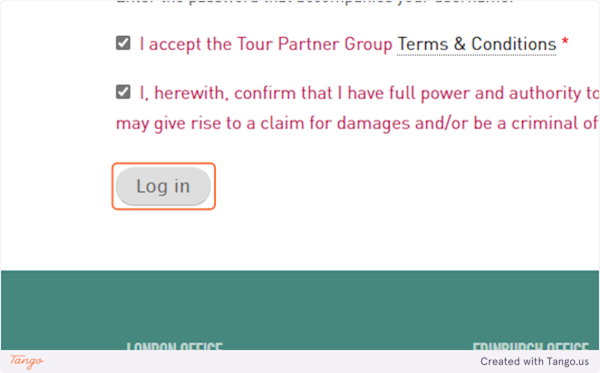
- Once you enter your login information, please make sure to check both boxes and click on Log In:
- Once all the steps are completed, you will be successfully logged into the portal. To navigate the page, please use the menu on the upper side of the screen
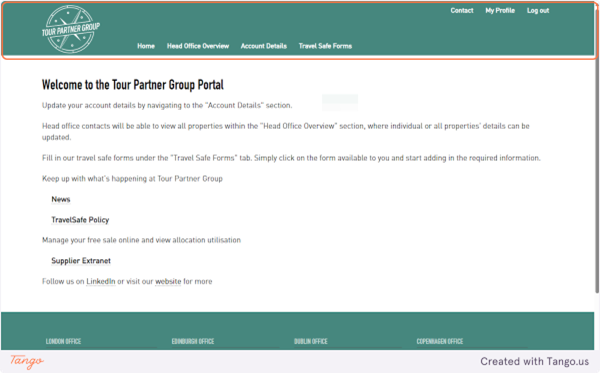
- The Home page will give you details on how to navigate the portal but also the latest news and our Travel safe policy
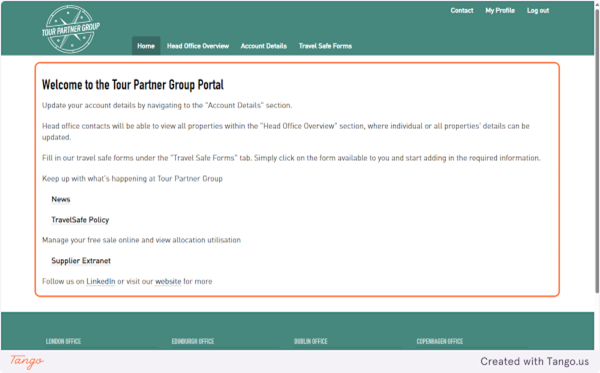
- Under the Head Office Overview tab, you will be able to see the list of Suppliers and their Address information
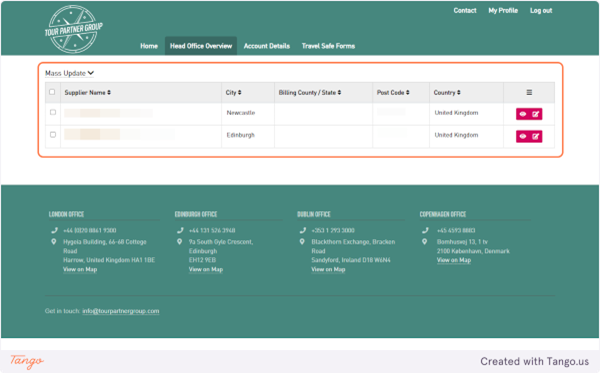
- Under the Account Details tab, you will be able to see information like Address Details, available Travel Safe forms, list of suppliers and Forms submissions
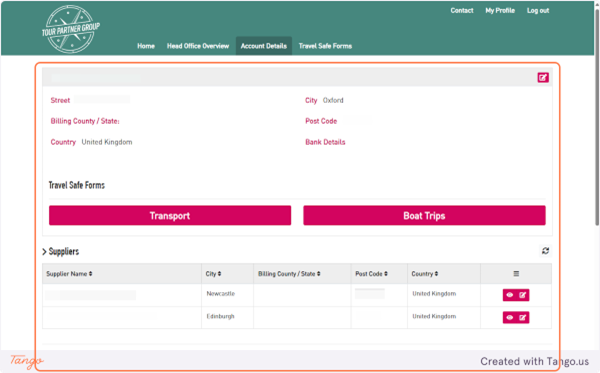
- Under the Travel Safe forms section, you will be able to click on the relevant submission and start filling out the form.
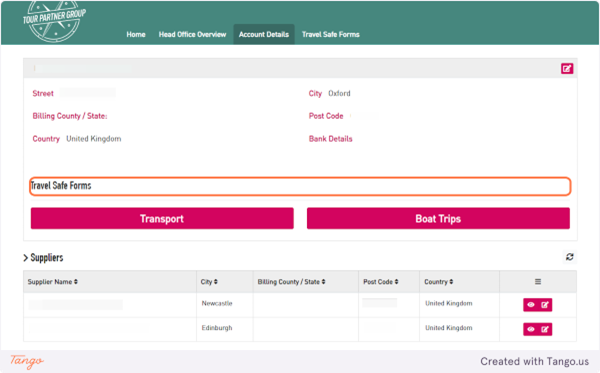
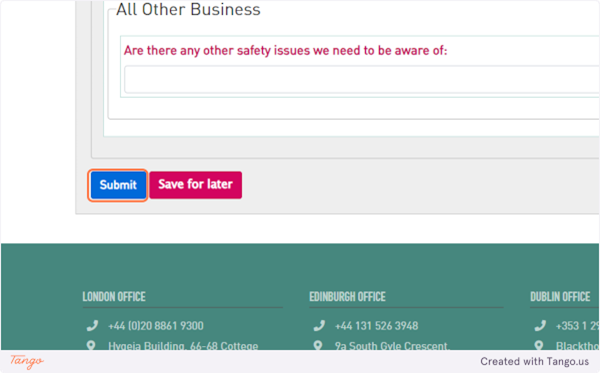
- Once you are done completing the form, you can either Submit it or save it as Draft for a later submission.
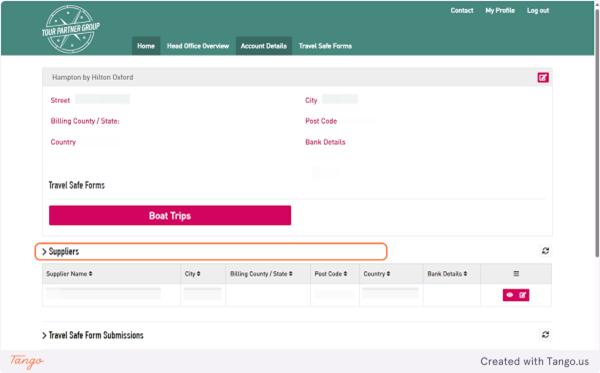
- Going back to the Account details tab, you will also find the list of suppliers and their address.
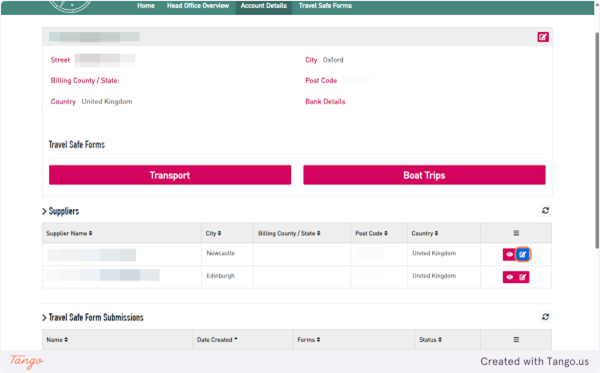
- You can amend the address details by clicking on the Edit Button
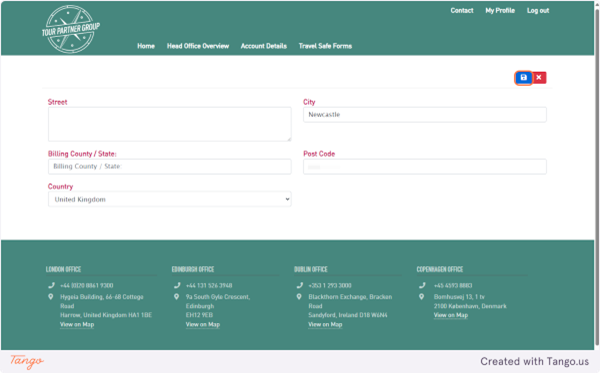
- A new page will open, where you can amend the Address information. Please make sure to click on “Save” icon once completed, as highlighted in the screenshot:
- Going back to the Address Details section, under Travel Safe Submissions, you will be able to see all the forms which were submitted or saved as drafts.
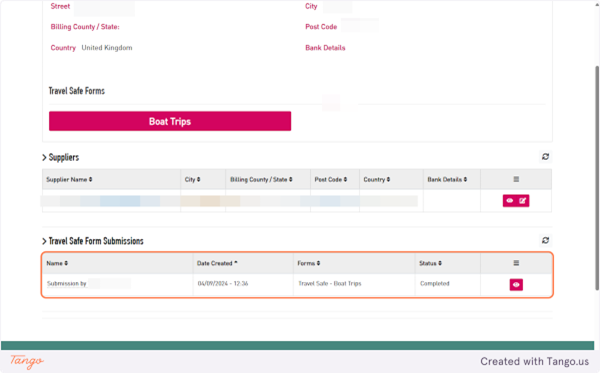
- To open them, please click on the View icon.
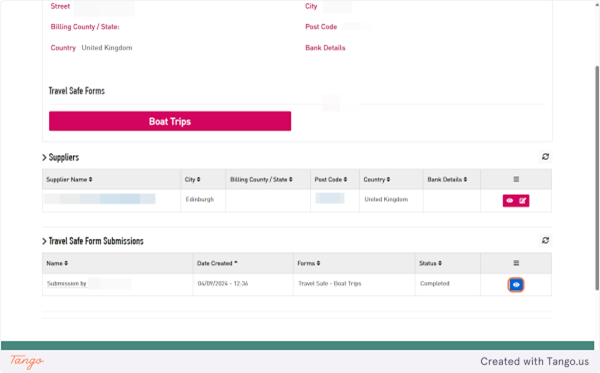
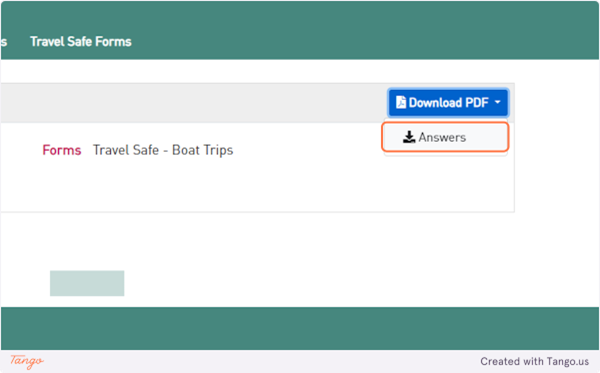
- You will then be prompted with the Download page:
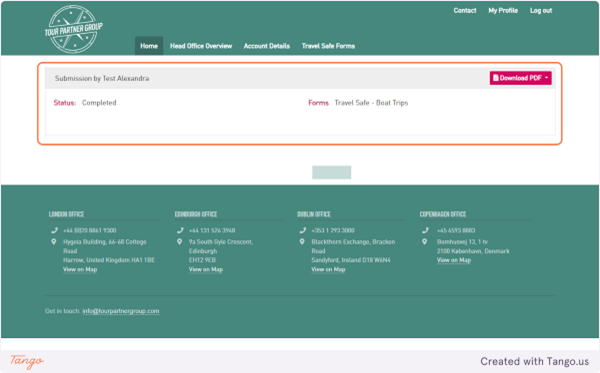
- Click on dropdown trigger
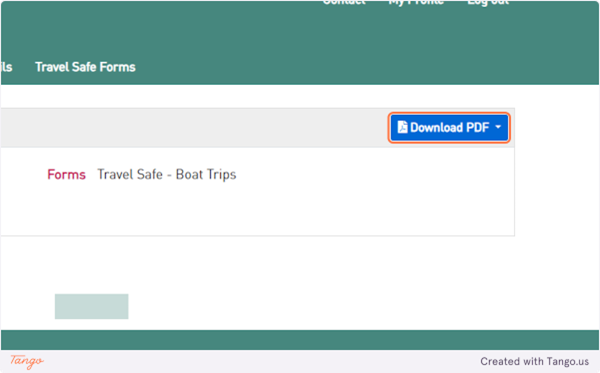
- Click on Answers – the Form will start downloading in your browser
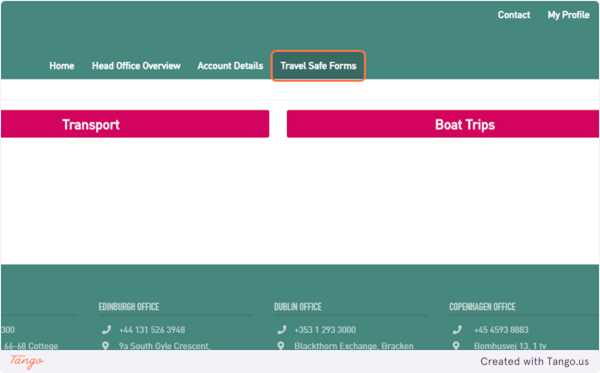
- The last tab, Travel Safe Forms, will also prompt you to select and complete the relevant Travel Safe form
- Another section worth mentioning is the Contact & My Profile section
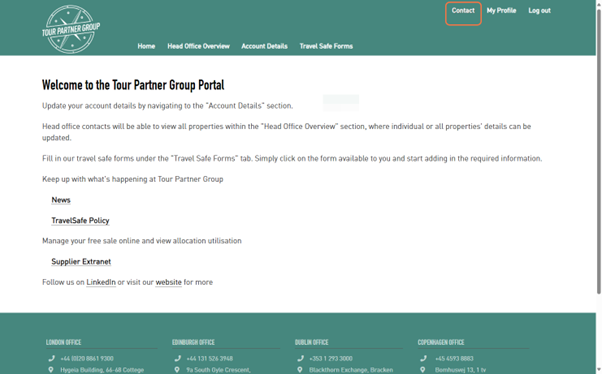
- If you click on Contact, you will be prompted with the below page. This is where you can get in touch with us:
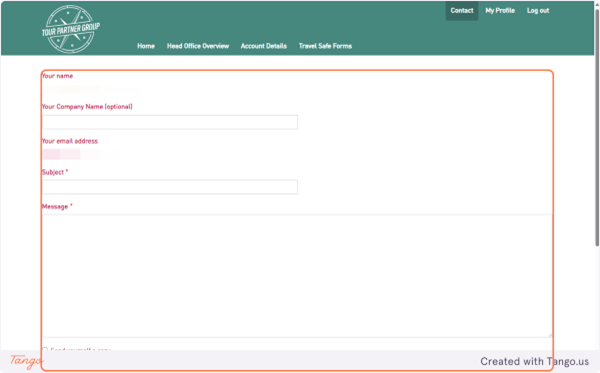
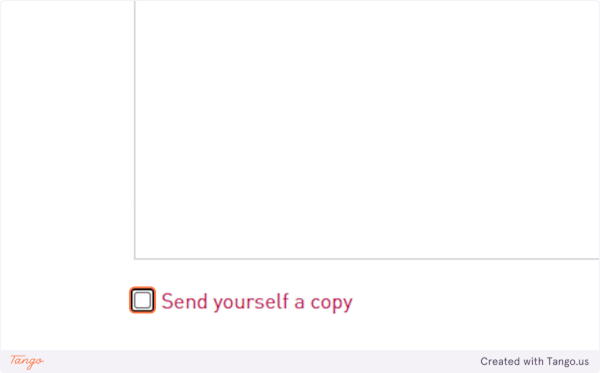
- If you check Send yourself a copy, you will also receive a copy of this message in your inbox
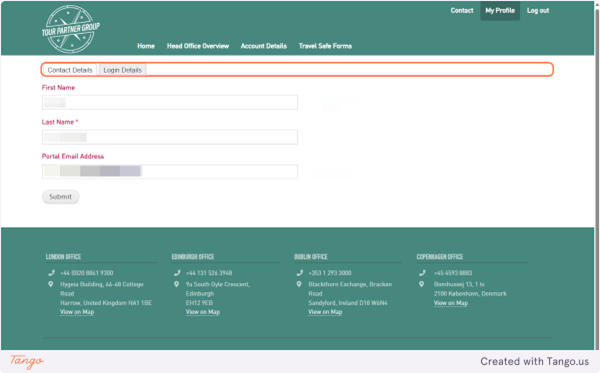
- Under My Profile, you will be able to see and amend your Contact&Login Details
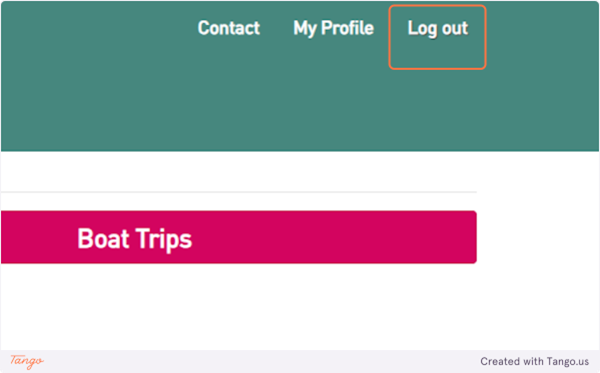
26. Once you no longer want to use the portal, please click on Log Out